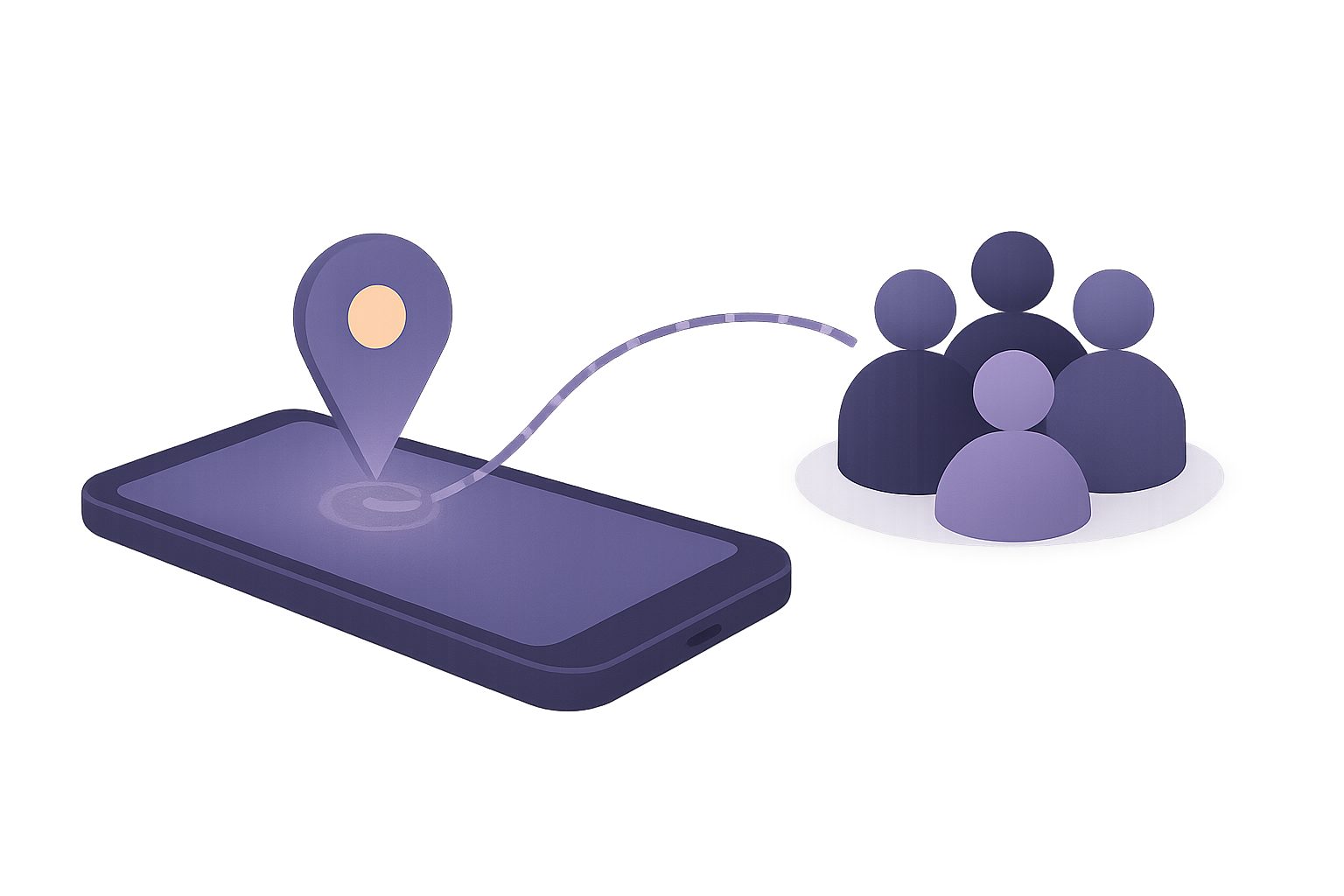
To share your location on an iPhone, open the Find My app, tap People → Share My Location, type in a contact, and choose how long to share: for one hour, until the end of the day, or indefinitely. That’s the most reliable method — but it isn’t the only one. You can also share live from a Messages conversation, drop a one-time pin in Maps, or use Check In to automatically let someone know you arrived safely.
This guide walks through every built-in method, step by step, then covers the two questions Apple’s instructions skip: how to stop sharing cleanly, and what actually happens to your location once you send it.
The fastest way to share your location on iPhone
If you just need the quick version, here it is:
- Open the Find My app.
- Tap the People tab at the bottom.
- Tap Share My Location (or the + button, then Share My Location).
- Enter the name, phone number, or email of the person.
- Tap Send, then choose Share for One Hour, Share Until End of Day, or Share Indefinitely.
Done. The other methods below are variations on this — better suited to one-time sharing, sending a specific place, or confirming a safe arrival.
Method 1: Share your location with Find My
Find My is Apple’s dedicated tool for ongoing location sharing, and it’s the one to reach for when you want someone to be able to check on you over time — a partner, a parent, a close friend.
- Open Find My and tap the People tab.
- Tap Share My Location.
- Type the contact you want to share with, then tap Send.
- Choose a duration: Share for One Hour, Share Until End of Day, or Share Indefinitely.
The person receives a notification and can choose to share their location back with you. To see someone who’s sharing with you, just open the People tab — their dot appears on the map, and you can tap it for directions, an ETA, or to get notified when they arrive somewhere.
Tip: “Share for One Hour” is the most underused option. For a one-off — meeting a friend in a crowded place, a first date, a night out — it gives you exactly the visibility you want and then quietly switches itself off. No remembering to turn it back off, no permanent thread.
Method 2: Share your location from a Messages conversation
If you’re already texting someone, you don’t need to leave the conversation.
- Open the Messages conversation with that person.
- Tap their name or photo at the top of the screen.
- Tap Share My Location (for ongoing sharing) and pick a duration.
Sharing started this way shows up live inside the conversation, so the map is right there in the thread you’re already using. It’s the same underlying Find My sharing — just reached from a different door.
On recent versions of iOS you can also tap the + (apps) button to the left of the text field and choose Location to start sharing from there.
Method 3: Send your current location as a one-time pin
Sometimes you don’t want ongoing sharing — you just want to answer “where are you?” once.
- Open the Messages conversation.
- Tap the person’s name or photo at the top.
- Tap Send My Current Location.
This sends a single snapshot of where you are right now as a map pin. It does not keep updating — it’s a moment in time, not a live feed. Perfect for “here’s the restaurant” or “this is where I parked,” without committing to anything ongoing.
Method 4: Share a place from Apple Maps
The methods above share you. Sometimes you want to share a place — a meeting point, a trailhead, an address.
To share a specific place:
- Open Maps and search for the place, or touch and hold on the map to drop a pin.
- Tap the place card at the bottom, then swipe up if needed.
- Tap Share, and choose how to send it — Messages, Mail, or another app.
To share where you are right now as a place:
- In Maps, tap the location arrow to center the map on you.
- Tap the blue dot that represents your position.
- Tap Share My Location and pick how to send it.
A shared place is a static pin, not live tracking — useful precisely because it’s limited to “here’s the spot,” nothing more.
Method 5: Use Check In to confirm you arrived safely
On recent versions of iOS, Check In is the feature to use when the real question isn’t “where are you right now?” but “did you get there okay?”
- Open a Messages conversation with the person you want to notify.
- Tap the + button near the text field.
- Tap Check In.
- Follow the prompts to choose When I Arrive (at a destination) or After a Timer.
If you arrive (or end the timer) as expected, your iPhone simply tells the other person you’re safe. If you don’t — you stop responding, or you’re badly delayed — it can share your location, route, and battery level with that one person so they can help. It’s designed for exactly the “text me when you land” moment, without you having to remember to send the text.
Check In is end-to-end encrypted and works iPhone-to-iPhone.
How to stop sharing your location on iPhone
Starting is easy to find; stopping is the part Apple buries. Here are your options.
Stop sharing with one person:
- Open Find My and tap the People tab.
- Tap the person you’re sharing with.
- Scroll down and tap Stop Sharing My Location.
Stop sharing with everyone at once:
- Open Find My and tap the Me tab.
- Turn off Share My Location.
You can also stop from inside the relevant Messages conversation: tap the contact’s name at the top, then Stop Sharing My Location.
One thing worth knowing: when you turn off Find My sharing, the other person isn’t sent a “they stopped sharing” alert — they simply stop seeing your location. That makes it easy to wind sharing down without an awkward conversation.
Location sharing not working? Quick fixes
If your dot isn’t showing up or won’t update, run through these in order:
- Location Services on? Settings → Privacy & Security → Location Services → make sure it’s on, and that Find My has permission.
- Find My iPhone on? Settings → tap your name → Find My → Find My iPhone.
- Signal and connectivity. Location updates need a data connection or Wi-Fi to travel. No signal, no update.
- Low Power Mode. It can delay background location updates. Toggle it off and check again.
- Date & Time set to automatic. Settings → General → Date & Time → Set Automatically. A wrong clock breaks more than you’d expect.
- Try removing and re-adding the person. A stale share sometimes just needs a fresh start.
Is sharing your location on iPhone private?
Mostly, yes — and it’s worth giving Apple credit here. When you share through Find My or Check In, the data is end-to-end encrypted, which means Apple itself can’t see where you are. That’s a genuinely good design, and far better than the average free “family locator” app.
But there are real gaps to understand:
- It’s an Apple-only island. Find My sharing works between Apple devices. The moment you need to share with someone on Android, Find My isn’t an option, and you fall back to texting a Maps pin or installing a third-party app.
- A pin sent over text isn’t the same as live, encrypted sharing. A one-time Maps pin sent over SMS travels through channels that aren’t end-to-end encrypted, and it’s a snapshot, not a live feed.
- It’s location only. Find My shares your dot — and nothing else. The moment you also want to share photos, messages, files, or calls privately with the same group, you’re back to stitching together separate apps, most of which keep readable copies on their servers.
- Third-party trackers are where the real risk lives. Many popular family-location apps keep a readable history of everywhere your family has been — exactly the standing liability that genuinely private tools are built to avoid.
In short: the iPhone’s built-in tools are a solid, private way to share your location within Apple’s world. The trouble starts at the edges of that world.
When you want more than the built-in tools
Find My is excellent at one job: showing an Apple user where another Apple user is. If that’s all you need, you’re set.
But families and friend groups rarely fit neatly inside one ecosystem. You might want to:
- Share with people on Android as well as iPhone.
- Group people into separate circles — your partner sees one thing, your wider family another.
- Have sharing expire automatically instead of running indefinitely.
- Keep your messages, photos, and calls in the same private place as your location — not scattered across apps that each keep their own readable copy.
That’s a different tool than Find My. It’s the idea behind private, end-to-end encrypted location sharing: your whereabouts are sealed on your own device so only the people you choose can ever see them — across platforms, with sharing you can turn off in a tap, and with no readable history sitting on someone else’s server.
FAQ
How do I share my location on iPhone? Open Find My, tap People → Share My Location, enter a contact, tap Send, then choose to share for one hour, until end of day, or indefinitely. You can also share from a Messages conversation by tapping the person’s name at the top.
How do I share my location for just one hour? In Find My, tap People → Share My Location, choose your contact, tap Send, and select Share for One Hour. It turns itself off automatically when the hour is up.
How do I share my location with an Android user? Find My is Apple-only, so it won’t work directly. You can send a one-time Maps pin over text, but it isn’t live and isn’t end-to-end encrypted. For ongoing, private sharing with someone on Android, use a cross-platform app built for it.
Why is my location not updating or sharing not working? Usually it’s Location Services being off, a weak or missing signal, Low Power Mode delaying updates, or an incorrect Date & Time. Check those first; if it still fails, remove and re-add the person.
How do I stop sharing my location without them knowing? Open Find My → People → tap the person → Stop Sharing My Location, or turn off Share My Location entirely under the Me tab. Apple doesn’t send the other person a notification when you stop — they simply stop seeing your dot.
Does sharing my location drain my battery? Not much. Find My is designed to send efficient updates rather than constantly pinging your GPS, so day-to-day battery impact is small.
Is it safe to share my location on iPhone? Through Find My and Check In, yes — that data is end-to-end encrypted, so even Apple can’t read it. The bigger risks are sending pins over unencrypted text and installing third-party tracker apps that keep a readable history of your movements.
Sharing your location on an iPhone is easy; sharing it privately, with the right people, across whatever phones they happen to carry is the harder problem. That’s the whole idea behind Sodal: a private space for your circles where your location — along with your messages, calls, and photos — is sealed so only the people you choose can ever see it.